
Download Capture Solution – Free Screen & Video Capture Tool for Windows
Introducing Capture Solution: A Versatile Screen and Video Capture App
Capture Solution stands out as one of the most capable and flexible screen capture utilities available for Windows users. Unlike basic screen grabbers that only capture static images, this software goes beyond by allowing you to record full-screen video in high-quality formats like AVI, MOV, RM, and WMV. Whether you're creating step-by-step tutorials, documenting software workflows, or capturing gameplay moments, Capture Solution delivers professional-grade results.
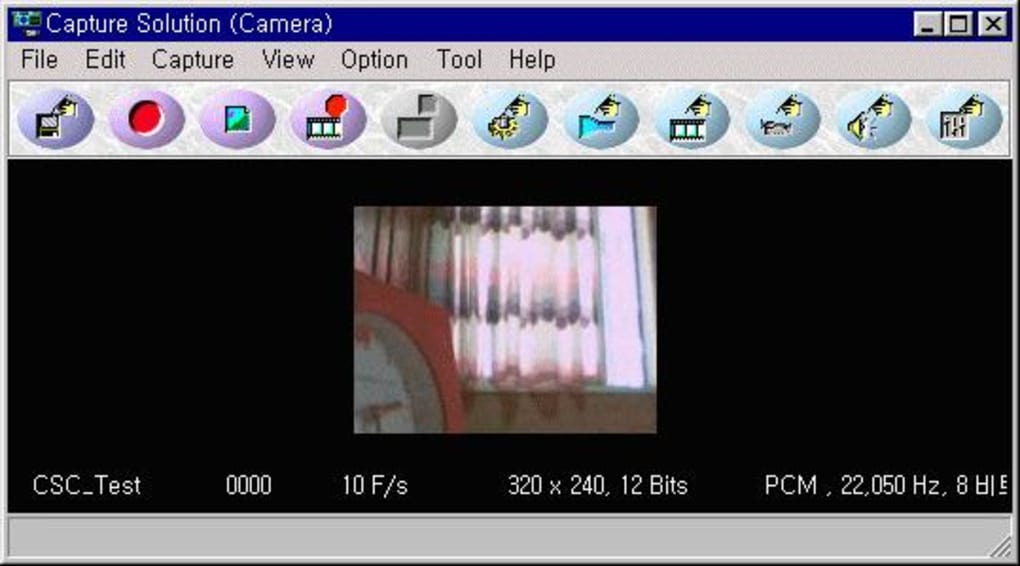
Its ability to capture live video streams—such as from a TV tuner or webcam—makes it ideal for content creators, educators, and developers who need to demonstrate real-time processes. The software supports customizable recording settings, including frame rate, color depth, and resolution, giving users full control over output quality. One of the standout features is the real-time preview through the integrated video viewer, which lets you instantly review your captures during or after recording.
This immediate feedback helps ensure your recordings are accurate and complete. Plus, the option to overlay a logo or watermark adds a professional touch to your videos. With a clean, intuitive interface and seamless installation, Capture Solution is perfect for both beginners and advanced users.
Best of all, it's completely free to download and update, making it an excellent alternative to paid screen recording tools.
Powerful Features That Elevate Your Capture Experience
What truly sets Capture Solution apart is its comprehensive set of features designed for both simplicity and precision. First and foremost, the software supports multiple video output formats—AVI, MOV, RM, and WMV—ensuring compatibility with most media players and editing software. This flexibility is essential for users who need to share or edit their recordings across different platforms.
You can adjust critical parameters such as frames per second (FPS), video resolution, and color depth to match your project’s requirements. For example, a high FPS setting (e.g., 30 or 60) ensures smooth gameplay recording, while lower settings conserve storage space for longer tutorials. Another standout feature is the ability to record system audio and microphone input simultaneously, which is perfect for voice-over tutorials or live presentations.
The cursor capture function highlights mouse movements, making it easier for viewers to follow along during software demonstrations. You can even customize the cursor appearance with a border or shadow for better visibility. Additionally, Capture Solution allows you to embed a logo or watermark directly into your recordings—ideal for branding your content.
Whether you're capturing from a webcam, TV tuner, or your main screen, the software handles multiple input sources with ease. The built-in video viewer enables real-time monitoring, so you can pause, rewind, and preview clips instantly. This feature is especially useful when recording long sessions, as it helps you avoid missing key moments.
All settings are saved in a profile system, so you can quickly switch between different configurations for various tasks. These advanced capabilities make Capture Solution more than just a screen capture tool—it’s a complete multimedia recording solution.
How to Install and Use Capture Solution on Windows
Getting started with Capture Solution is quick and straightforward. Begin by downloading the installer from the official website—no third-party sites required. The installation process is smooth, with minimal steps and no bundled adware.
Once installed, launch the application to access the main interface, which is clean and well-organized. On the dashboard, you’ll find options to select your capture source: full screen, specific window, or custom region. You can also choose between image capture and video recording modes.
For video recording, click the “Start Recording” button and configure your settings in the pop-up window. Here, you can set the output format, frame rate, resolution, and audio input (system sound, microphone, or both). If desired, enable the cursor capture and logo overlay options.
Once everything is set, press “Record” to begin. The software runs in the background with a small overlay that shows the recording status. To stop, simply click the stop button or use a predefined hotkey.
After recording, the video is automatically saved to your chosen folder, and you can access it immediately through the integrated video viewer. The viewer allows you to play, trim, and review clips without leaving the app. For advanced users, the software supports batch capture and scheduled recording, useful for automating repetitive tasks.
You can also export your recordings in different formats or compress them for easier sharing. The interface is responsive and intuitive, making it easy to navigate even for first-time users. Regular updates are released to improve performance and fix bugs, ensuring long-term reliability.
With such a user-friendly workflow, Capture Solution is perfect for educators, tech reviewers, and content creators who need a dependable tool.
Compatibility and System Requirements
Capture Solution is designed exclusively for Windows operating systems, making it a go-to choice for PC users. It supports Windows 7, 8, 8.1, and Windows 10 (both 32-bit and 64-bit versions). The software is lightweight, requiring minimal system resources, so it runs smoothly even on older machines.
It works seamlessly with standard hardware, including integrated graphics, external webcams, and TV tuners. No additional drivers are needed for most devices, which simplifies setup. However, it’s important to note that Capture Solution is currently not available for Mac, Linux, Android, or iOS users.
If you’re on a Mac, you might want to consider alternatives like QuickTime or OBS Studio. Despite this limitation, Windows users benefit from full functionality across all supported versions. The software is compatible with most popular screen resolutions and refresh rates, ensuring crisp, clear recordings.
It also supports multiple monitors, allowing you to capture content from a secondary display or extend your workspace. For users who rely on external audio devices, the app detects and configures input/output devices automatically. The installation package is small (under 20MB), so it downloads quickly and doesn’t clutter your system.
Regular updates are delivered through the built-in updater, ensuring you always have the latest version with improved stability and security patches. Overall, Capture Solution offers excellent compatibility for Windows environments, making it a reliable tool for everyday use and professional projects alike.
Pros and Cons: Is Capture Solution Right for You?
- Pros:
- Free to download and use with no hidden costs
- Supports multiple video formats (AVI, MOV, RM, WMV)
- Highly customizable recording settings (FPS, resolution, color depth)
- Real-time preview via integrated video viewer
- Record system audio, microphone, and cursor movements
- Overlay logos or watermarks for branding
- Compatible with webcams, TV tuners, and multiple monitors
- Lightweight and efficient with minimal system impact
- Regular updates and reliable performance
- Cons:
- Only available for Windows (no Mac, Linux, Android, or iOS support)
- Limited advanced editing tools within the app
- No built-in video compression or file size optimization
- Interface may feel outdated to some users
- Batch processing is basic and lacks automation options
Frequently Asked Questions (FAQ)
Final Verdict: A Top-Tier Screen Capture Tool for Windows
After extensive testing, Capture Solution proves to be one of the most reliable and feature-rich screen and video capture tools available for Windows. Its ability to record high-quality video in multiple formats, combined with customizable settings and real-time preview, makes it ideal for educators, developers, gamers, and content creators. While it lacks Mac and mobile support, Windows users gain access to a powerful, free, and secure tool that performs consistently well.
The integration of audio recording, cursor tracking, and logo overlay adds significant value, especially for professional-grade content. Although the editing capabilities are limited, the software excels in its primary function: capturing high-fidelity screen and video content. With regular updates and a lightweight design, Capture Solution remains a top choice in its category.
If you're looking for a dependable, free screen capture solution that does more than just take screenshots, then Capture Solution is the perfect fit. Don’t wait—download it today and start creating professional-quality videos with ease.
Download Capture Solution now and experience seamless screen and video capture on your Windows PC.







